You can add new user accounts to your company and assign specific permissions.
|
NOTE |
Only users who have Full permissions for your company's Users module are able to add or edit users. The person in your company who is responsible for administrating your company's Workbench users must manage user permissions. |
|
Important |
Based on the number of users you have, you may be subject to additional billing. For questions related to billing, please call 1-866-716-6272. |
- Click New on the top left of the Users page.

The New User window opens.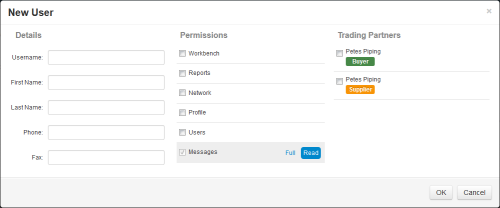
- In the Details area, fill out the fields with the user's information.

- In the Username field, enter the user's email address.
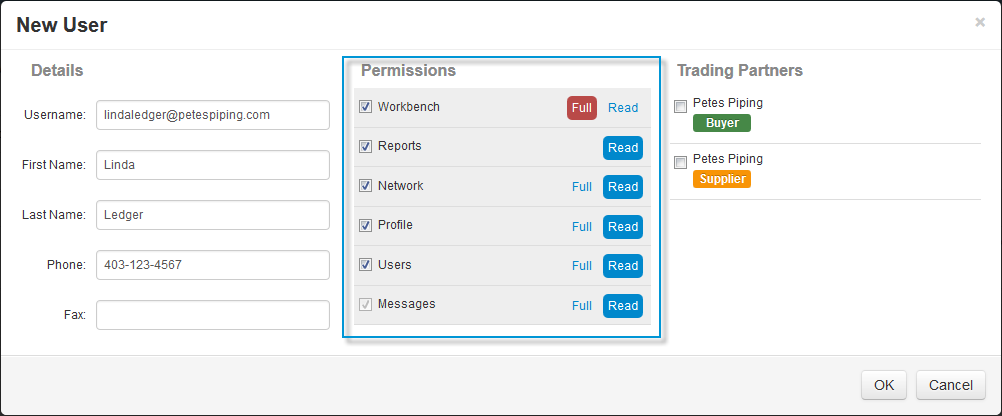
- In the Permissions area, select which modules the user can access. The Messages module is automatically selected for all users and cannot be deselected.
- For each selected module, select either Full or Read permissions. For details on user permissions, refer to Users, page 1.
- In the Trading Partners area, select which of your company roles to assign for the user. For details on Trading Partners settings, refer to Users, page 1.
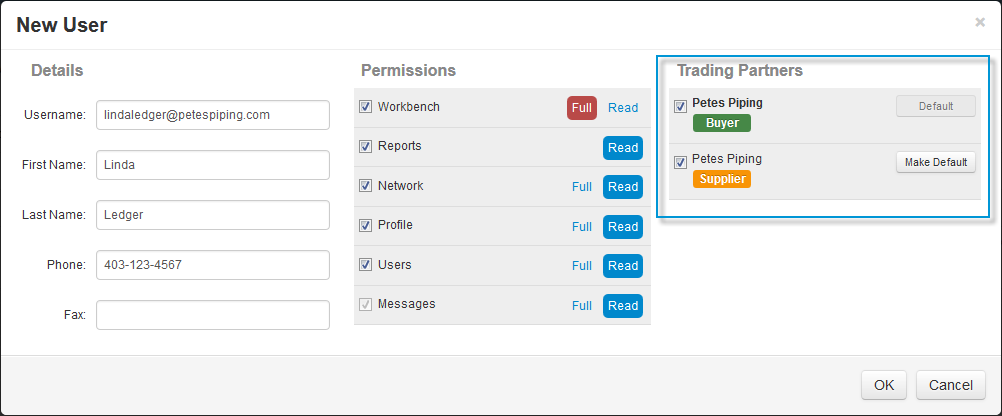
- If multiple companies are selected, you can choose which company should be selected by default when the user signs in to Workbench, by clicking Make Default next to the company name.
- Click OK to add the user.
The user is added to the user list.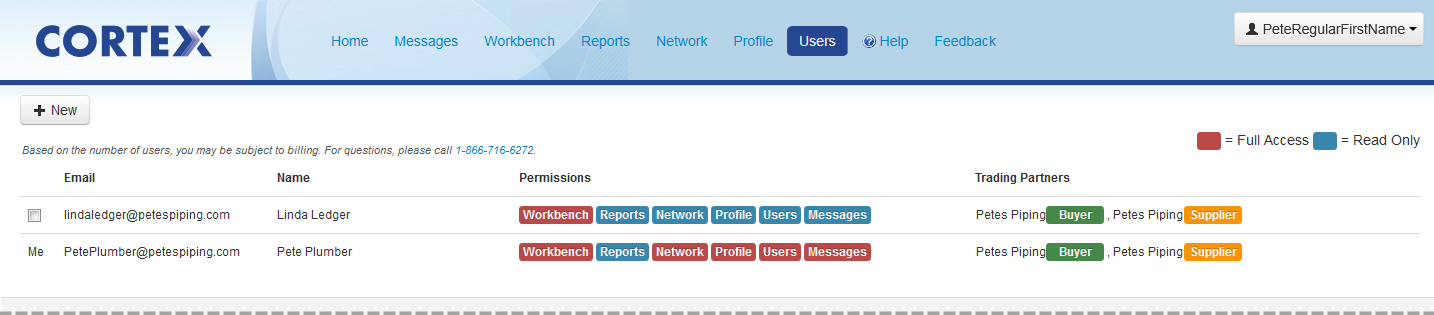
An email will be sent to the email address you entered in the Username field, providing instructions for the user to sign in to Workbench using a temporary password and prompting them set up a new password.